
Compliance (MSDS / PHC): keeping your registers
The Compliance module keeps the operational records the Punjab Healthcare Commission asks for, maintained day-to-day instead of assembled in a panic the night before an inspection. It is built as six simple registers plus a dashboard that flags anything about to lapse. This guide shows you how to add an entry to any register, and how to pull a dated report as a PDF.
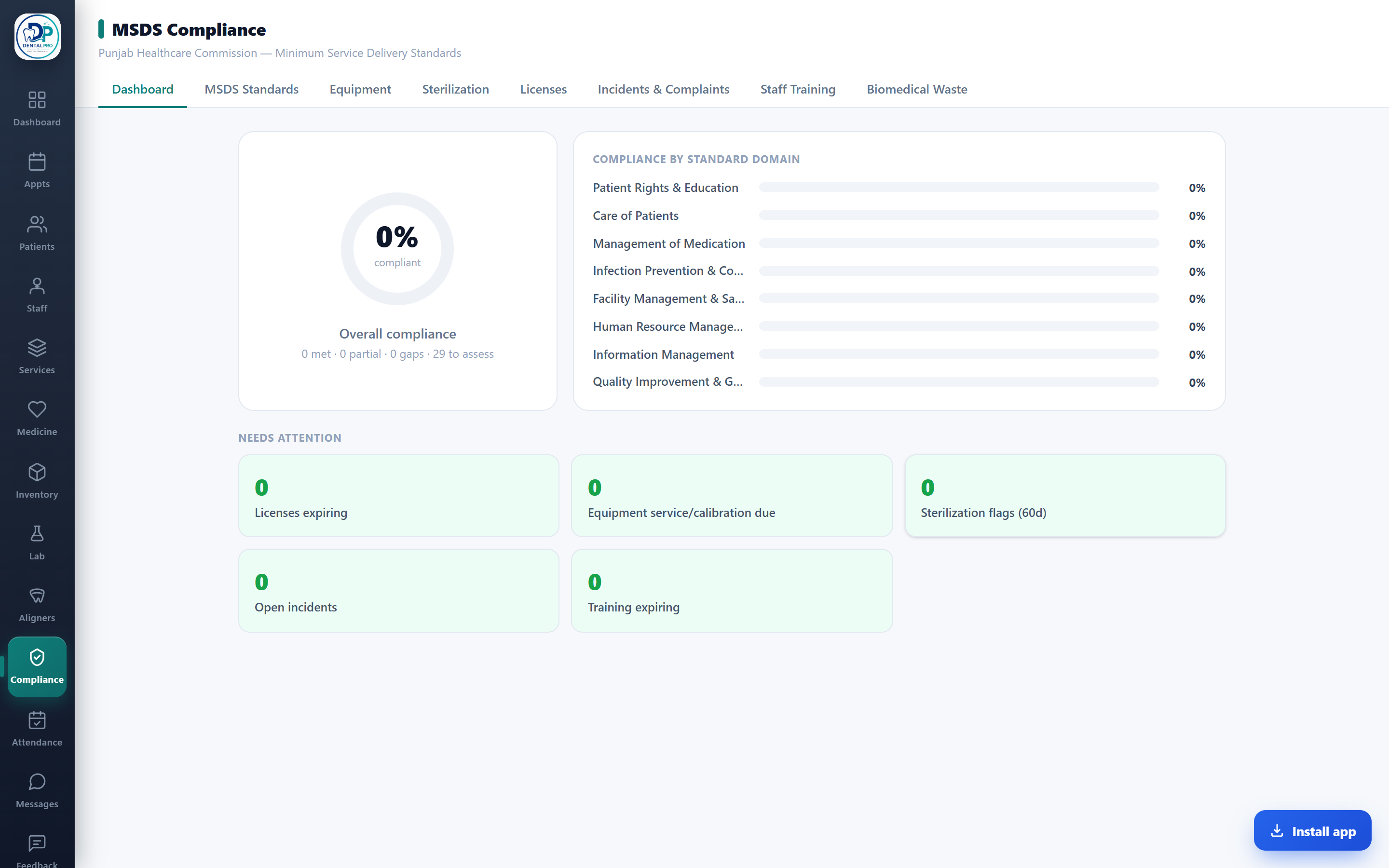
Open Compliance
Tap MSDS Compliance in the sidebar. You land on the Dashboard, which rolls up your compliance score and surfaces the things an inspector looks at first: licenses about to expire, equipment overdue for service or calibration, failed sterilization cycles and open incidents.
Choose the right register
Across the top are tabs for each register: Equipment, Sterilization, Licenses, Incidents & Complaints, Staff Training and Biomedical Waste. Tap the one you want to add a record to. There is also an MSDS Standards tab, where you self-assess against each standard.
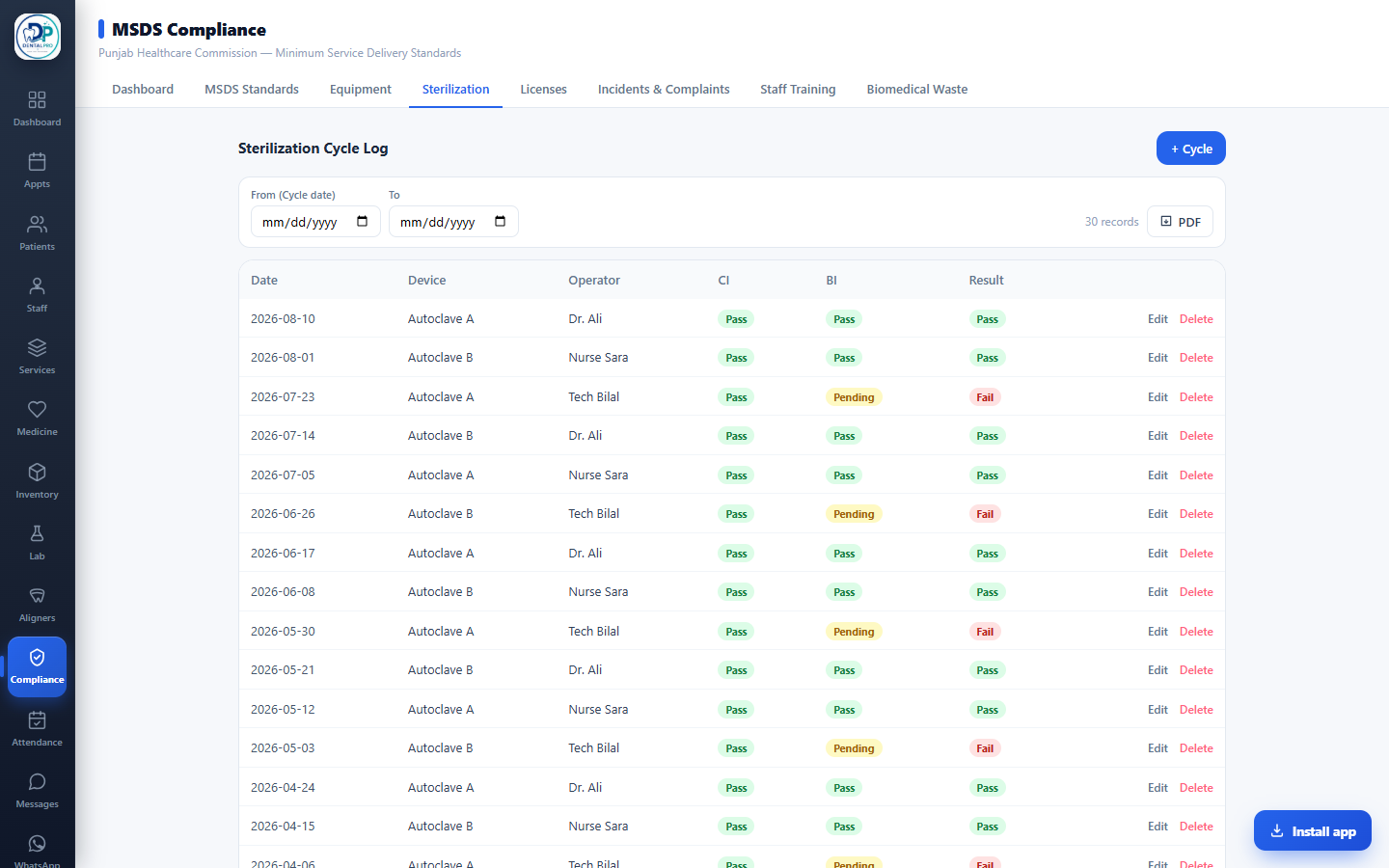
Add an entry
Tap the + Add button at the top right (it is labelled for the register, for example + Cycle on Sterilization or + License on Licenses). A form opens.
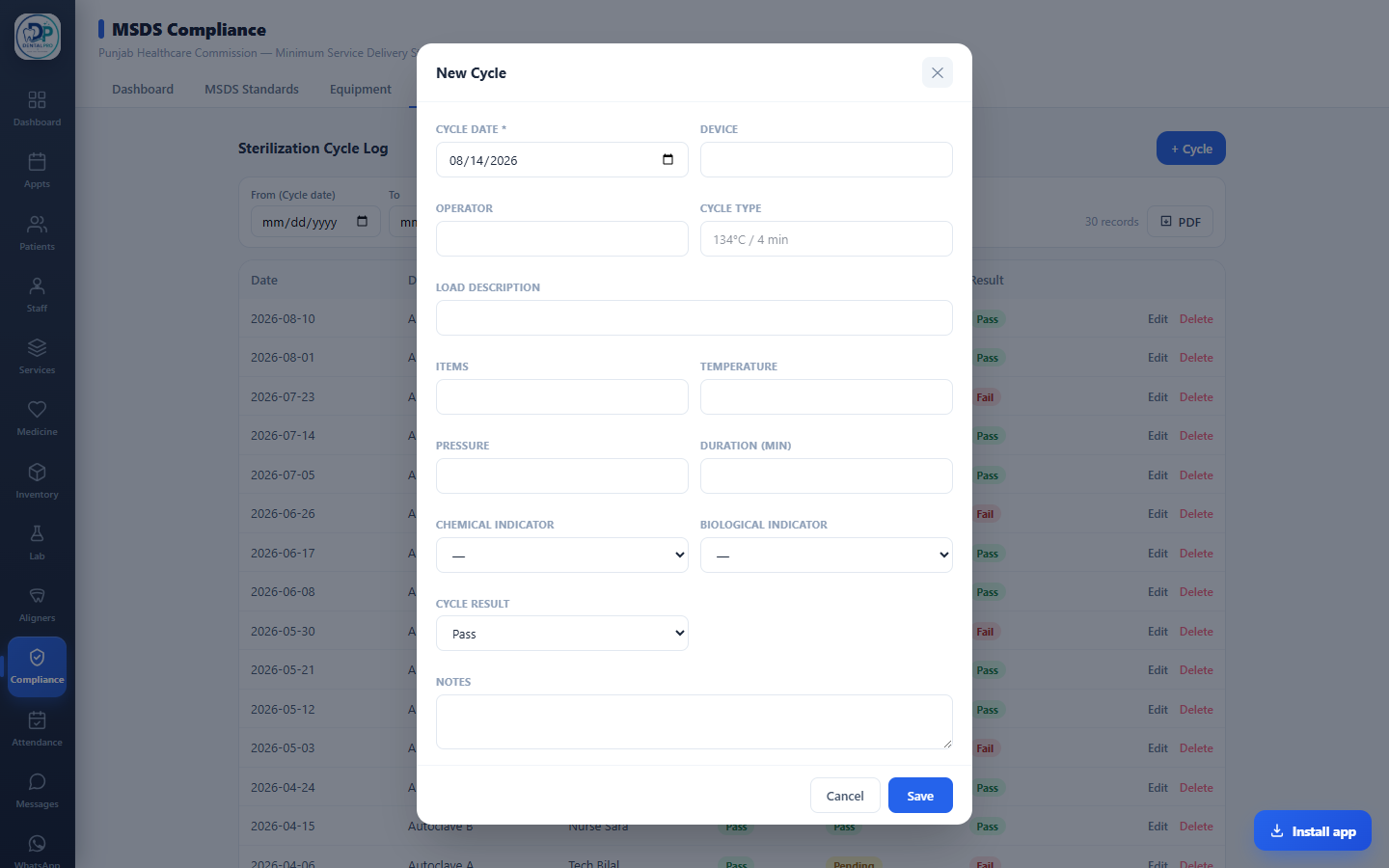
Fill in the details and save
Complete the form. Fields with a red asterisk are required; the date field usually defaults to today, which you can change. Dates, results (pass / fail), status and notes are all captured. Tap Save and the entry appears at the top of the register immediately, and on every other computer in your clinic at the same time.
See entries date-wise
Above the table are From and To date boxes. Set either or both to show only the entries whose date falls in that range (each register filters on its own date, for example the cycle date on Sterilization or the occurred-on date on Incidents). Tap Clear to remove the filter. The record count next to the boxes updates as you filter.
Generate a PDF
Tap the PDF button. DentalPro builds a clean report of the whole filtered set — your clinic letterhead, the register name, the selected period, the record count and a timestamp — and opens it ready to print. Choose Save as PDF in the print dialog to keep a copy, or print it for the inspector’s file.
Move through pages
Registers show 25 entries a page. When there are more, use Prev and Next at the bottom to page through them; the date filter and paging work together, so even a long register stays fast to browse.