Dermatology (skin) patients: register & full workflow
DentalPro doubles as skin & aesthetics software. When a patient is marked as a Derma Patient, their clinical tabs switch from the FDI tooth chart to a dedicated dermatology (skin) workspace — assessment, procedures, prescriptions and reports — while their profile, billing and appointments work exactly as usual. This guide walks through registering a derma patient, opening them, and the full skin-treatment workflow.
Register the patient as usual
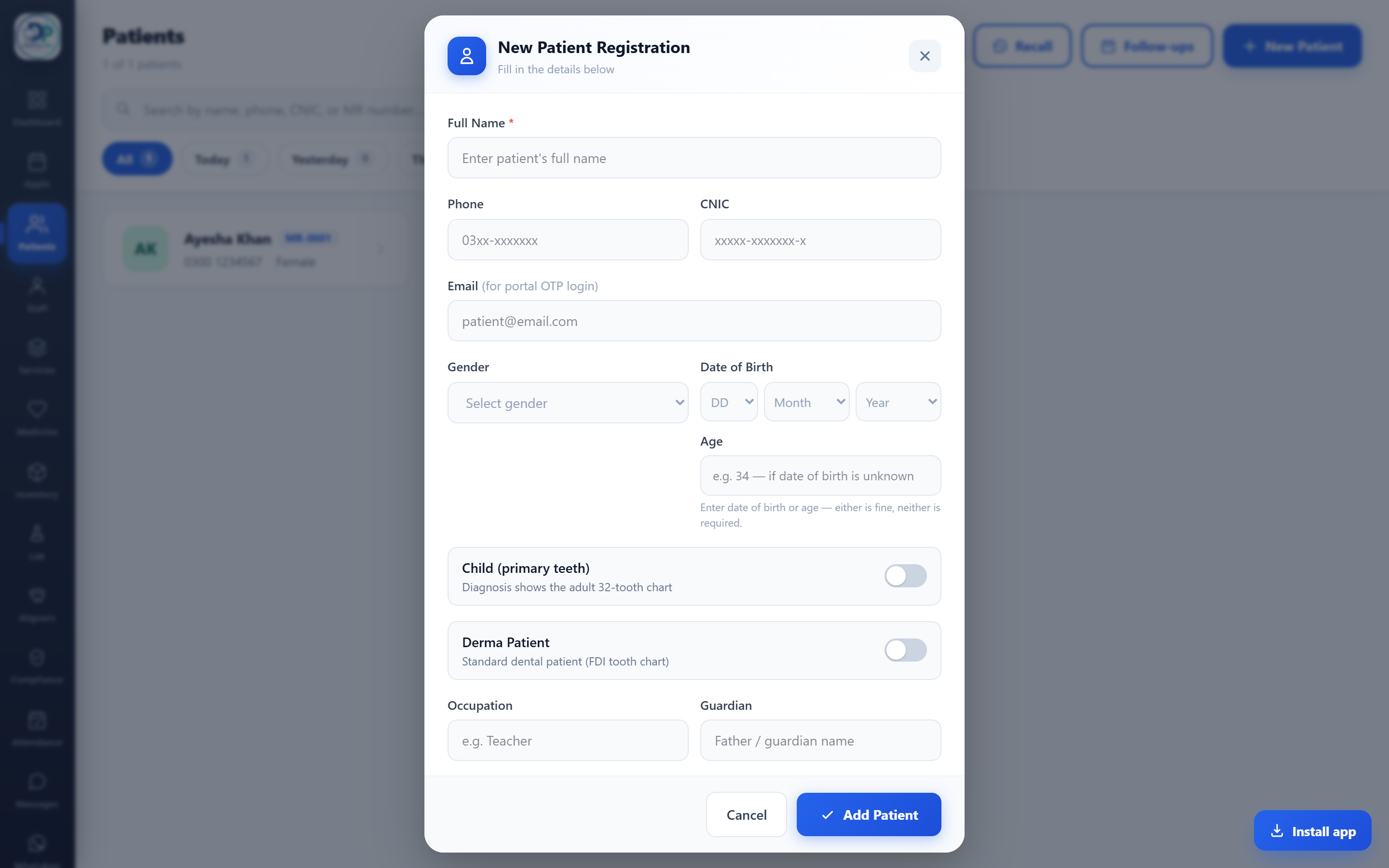
On the Patients screen tap New Patient and fill in the name (everything else is optional) — phone, age, gender and so on, just like any patient.
Mark them as a Derma Patient
In the New Patient form, turn on the Derma Patient toggle before saving. This flags the record so its clinical tabs open the skin workspace instead of the dental chart. You can also toggle it later by editing the patient.
Save & open the patient
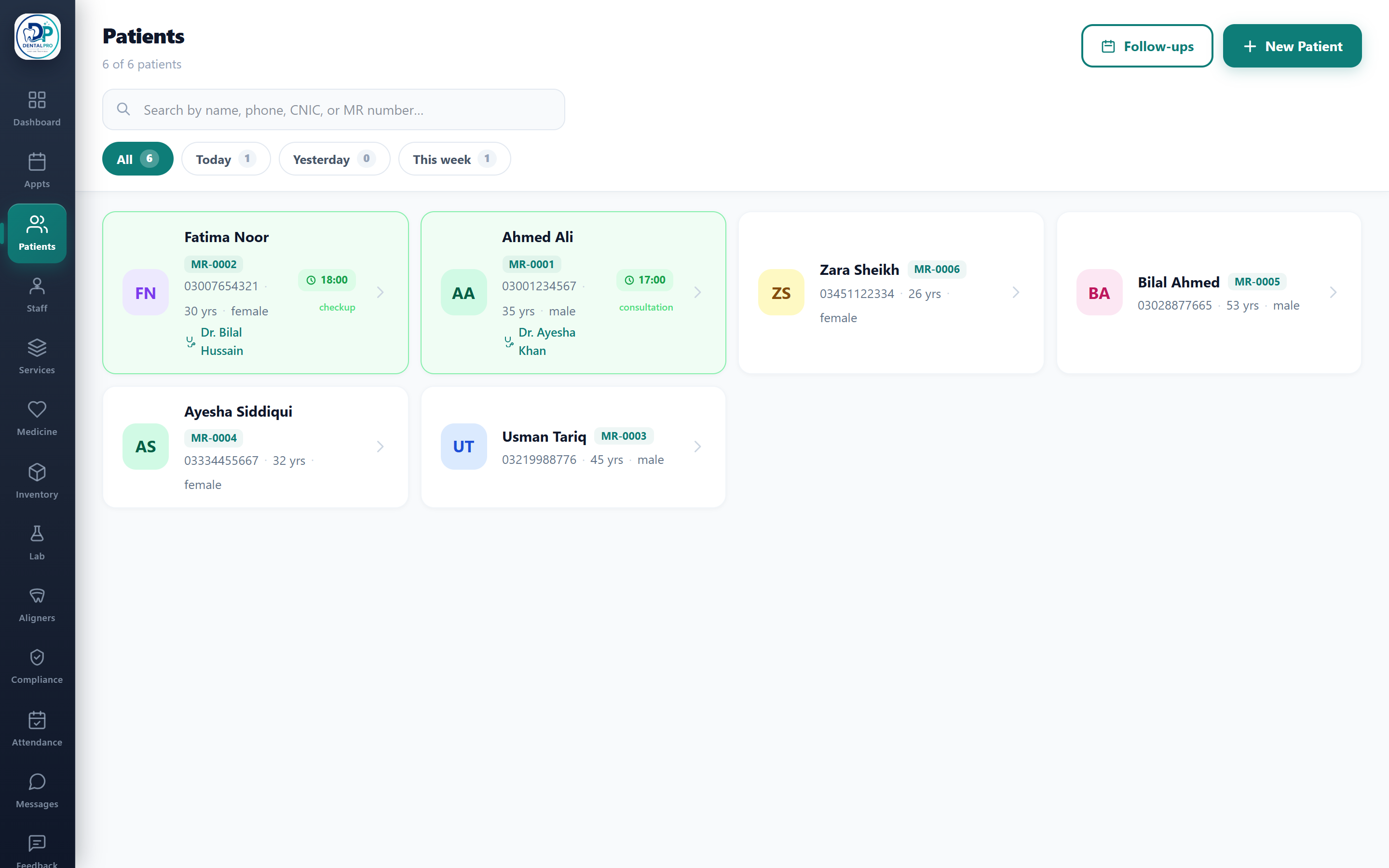
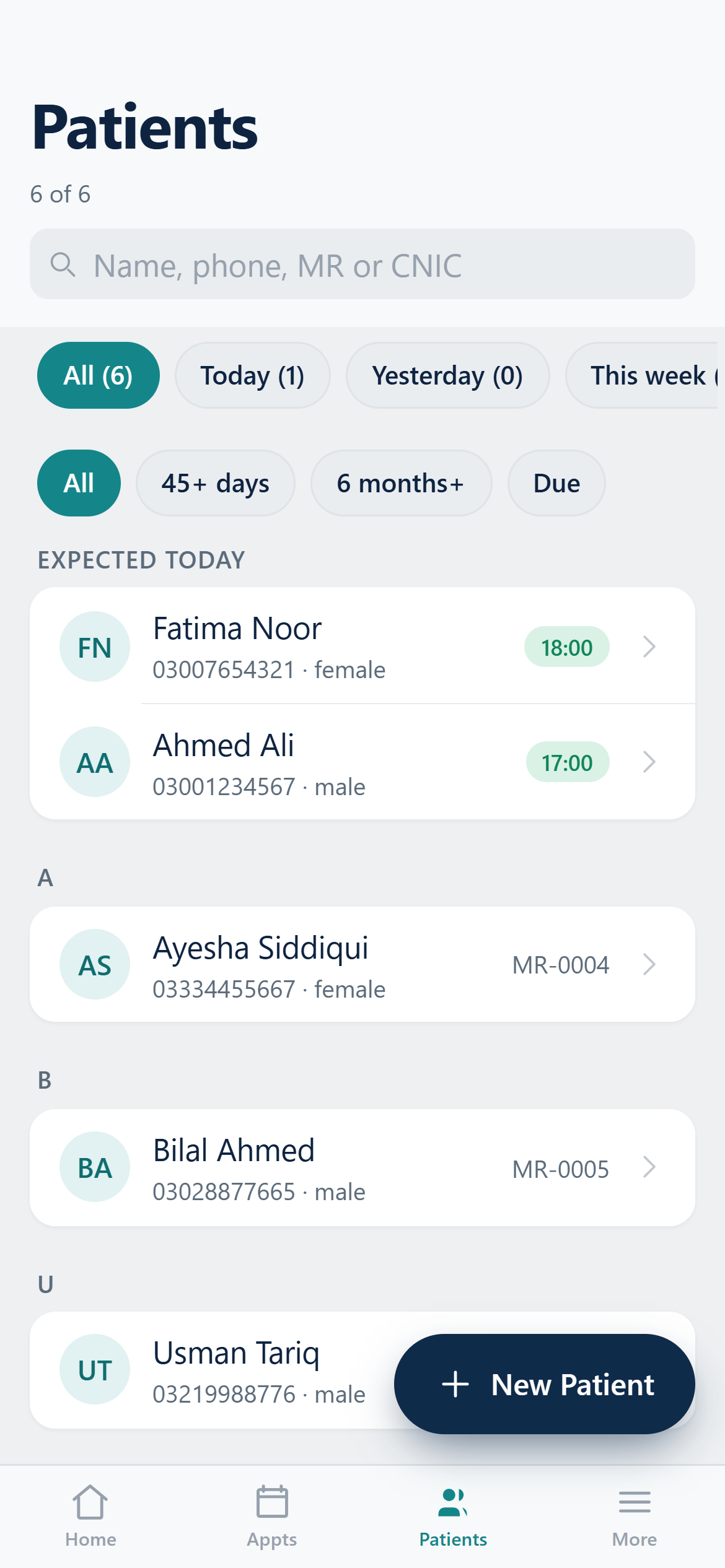
Tap Add Patient, then open the patient from the list. A derma patient is clearly marked, and opening them takes you into the dermatology workspace.
Skin assessment (Diagnosis tab)
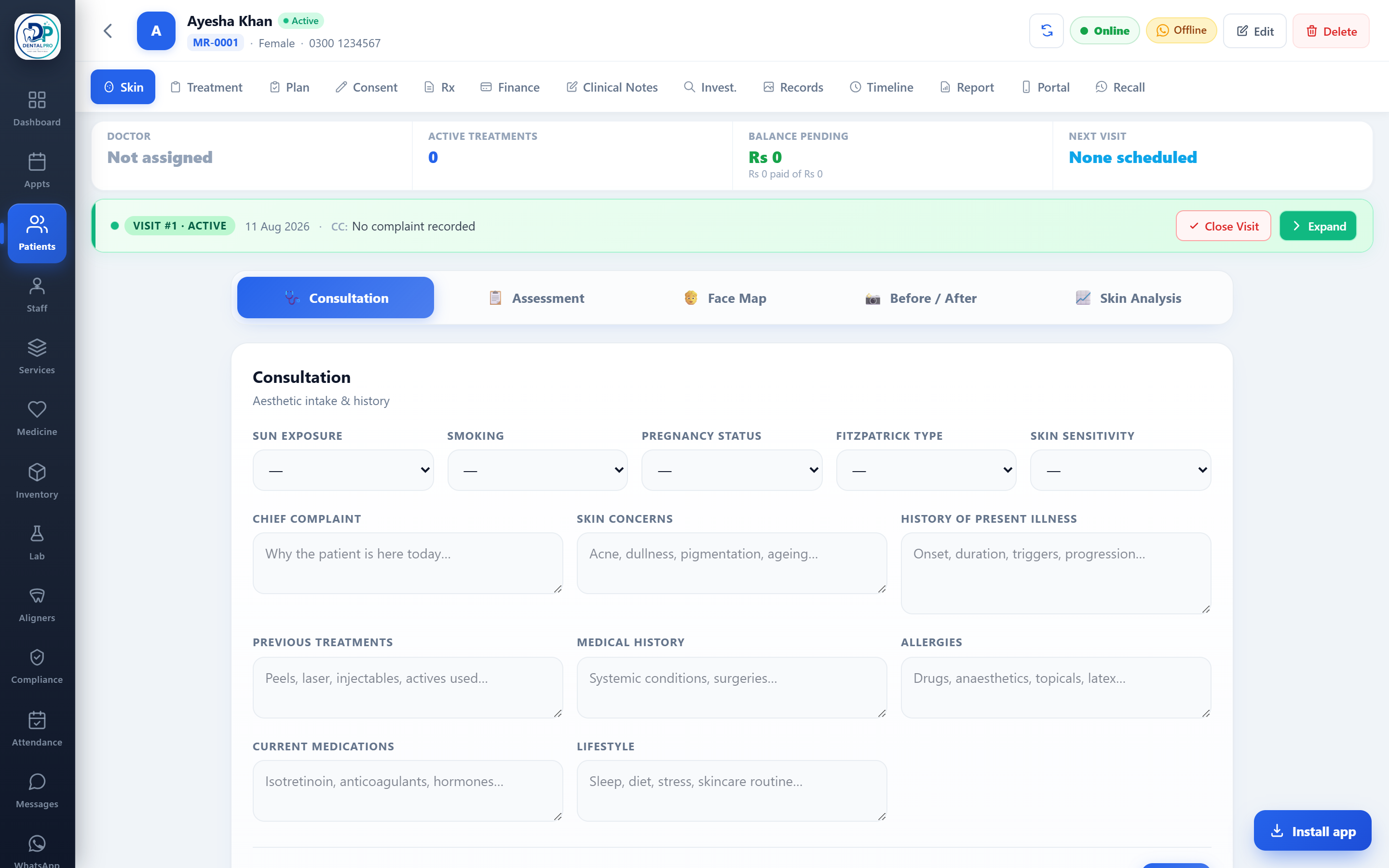
On a derma patient the Diagnosis tab shows the skin workspace — Consultation (aesthetic intake & history), Assessment, a Face Map, Before/After photos and Skin Analysis — in place of the tooth chart.
Plan & record skin treatments (Treatment tab)
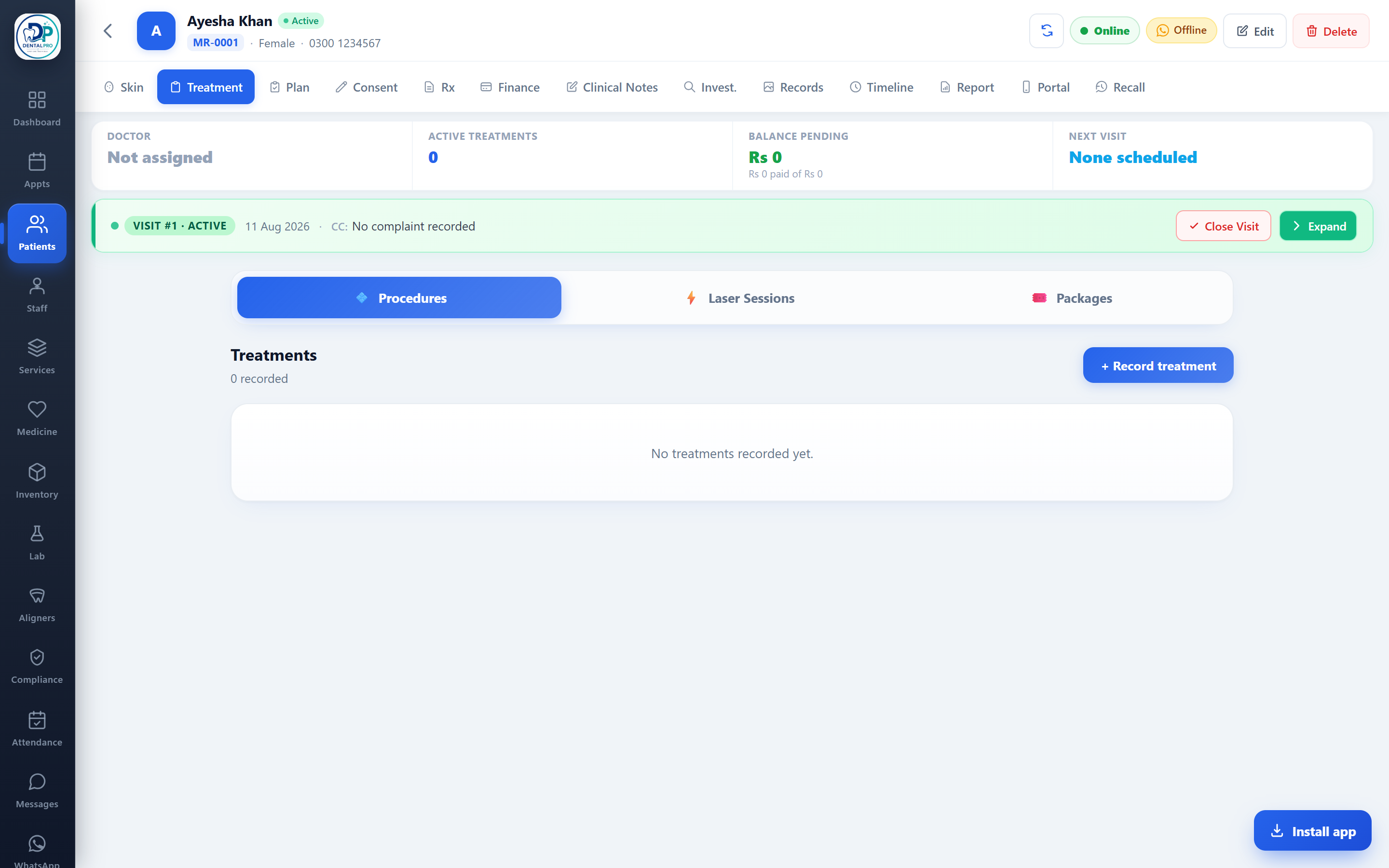
The Treatment tab becomes skin treatments: add the procedures, sessions, laser or package items the patient is having. These are costed and flow into billing like any treatment. Your dermatology services are kept separate from dental ones, so the list only shows skin procedures.
Prescribe skin medicines
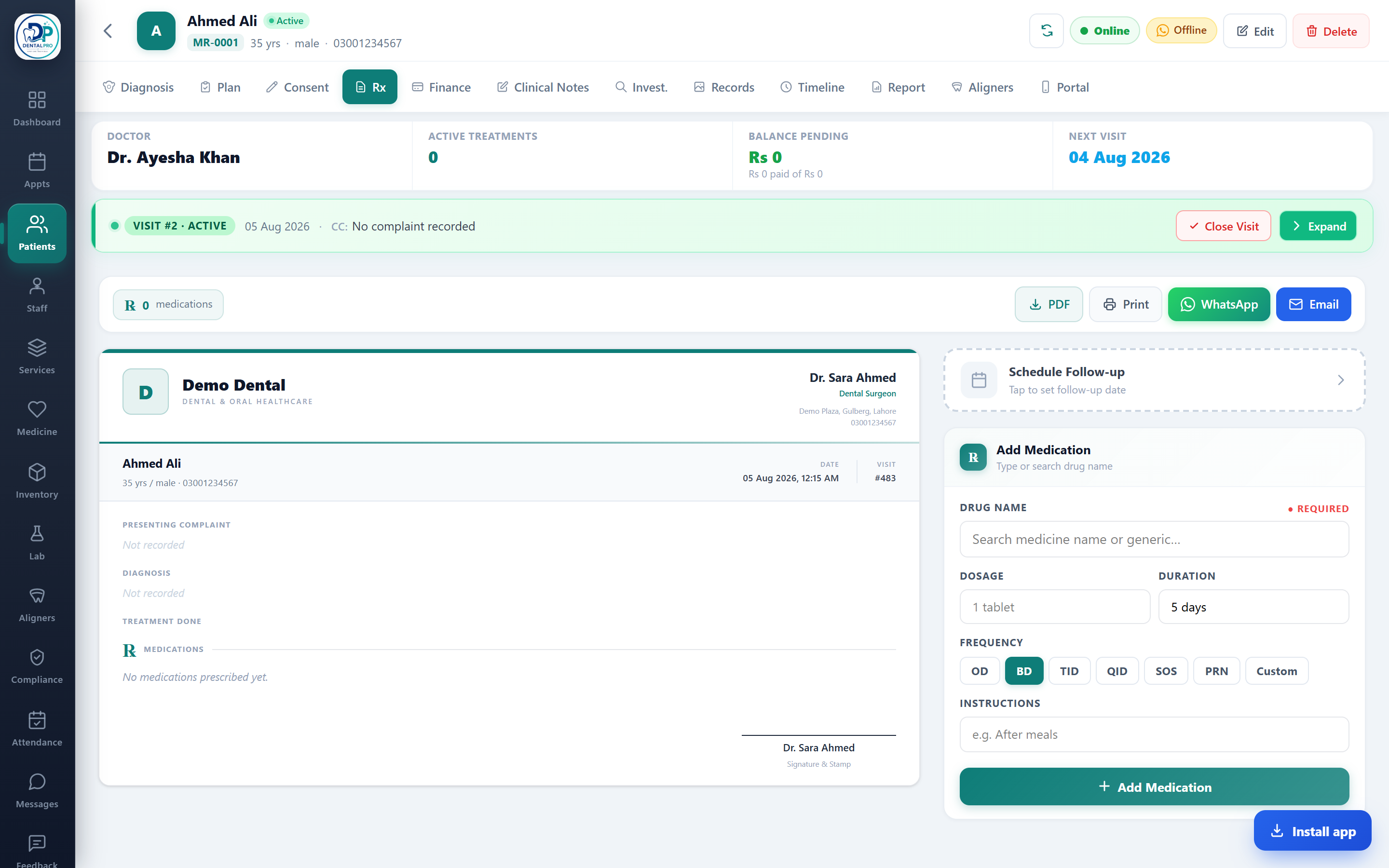
Use the Rx tab to prescribe. The medicine catalogue is scoped to your dermatology list, so you pick from skin medicines and creams rather than the dental formulary. Print, share on WhatsApp, or download the prescription as usual.
Consent, photos & records
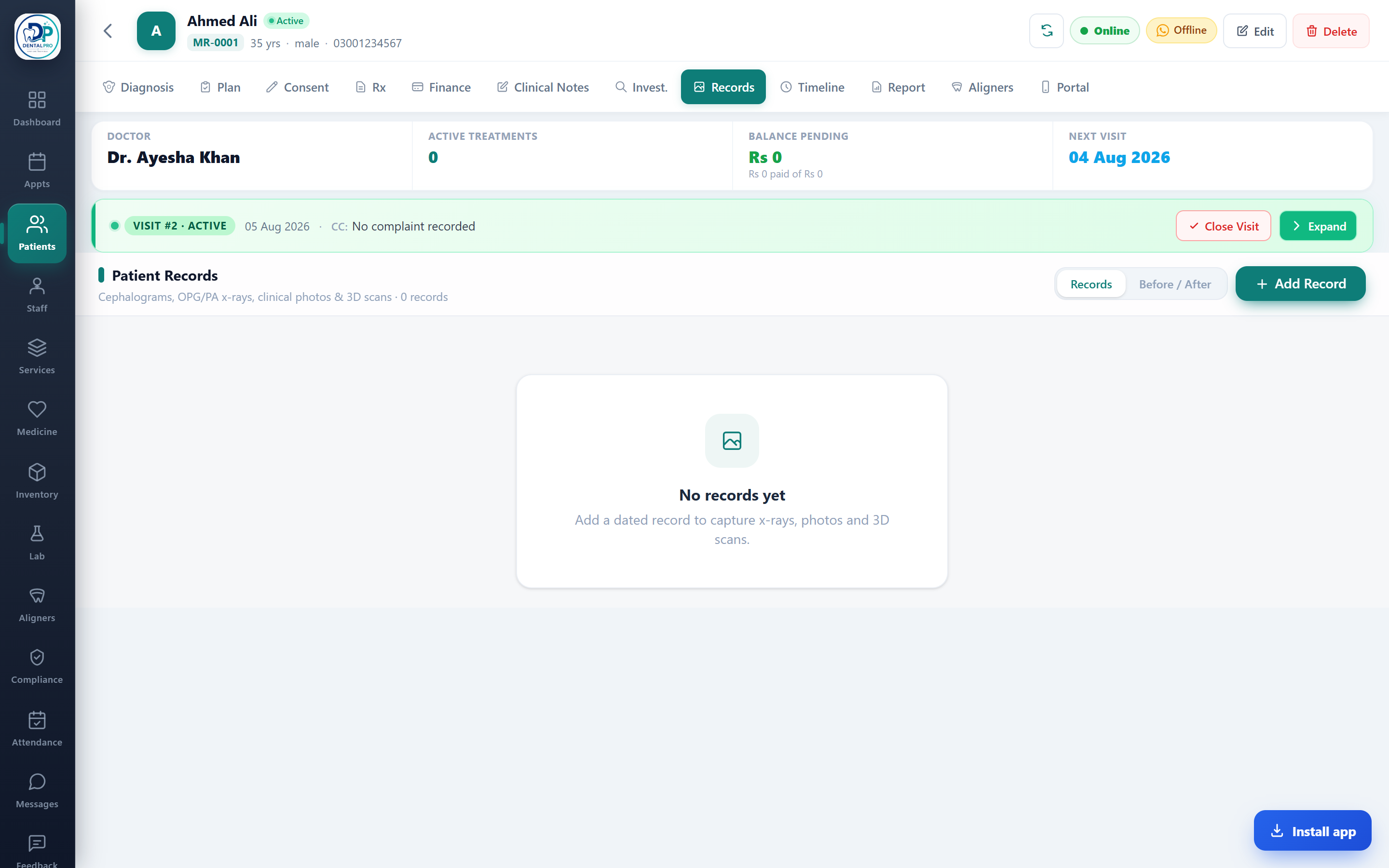
Capture consent for aesthetic procedures on the Consent tab, and store before/after photos, lab results and documents under Records — all on the patient’s timeline.
Bill & collect
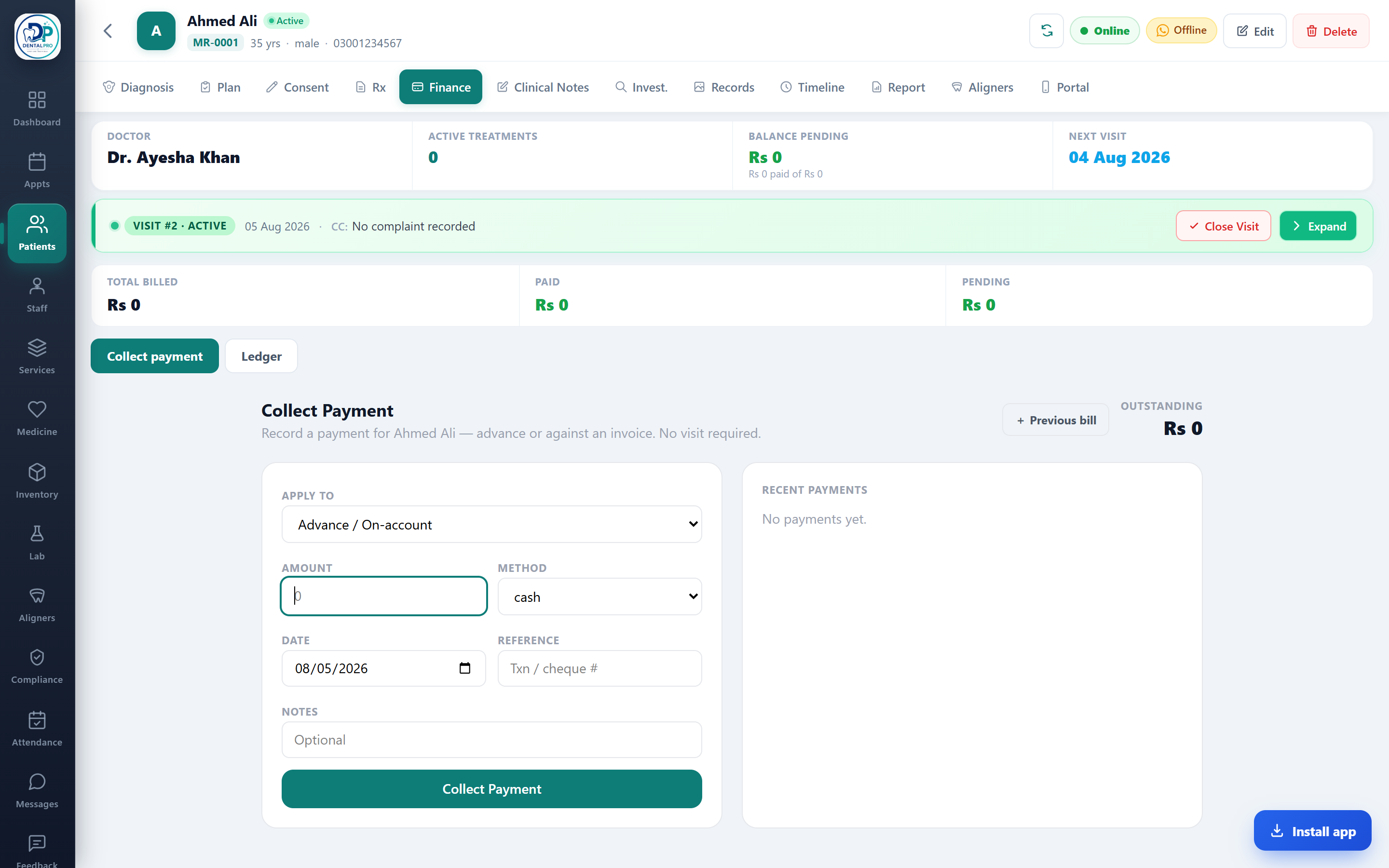
Skin treatments turn into invoices and payments in the Finance tab exactly like dental work — raise the bill, collect cash or bank, and send a WhatsApp receipt.
Dermatology report
The Report tab generates a dermatology-specific report (findings, treatments and plan) you can print or share, rather than the dental report.
Frequently asked questions
How do I turn a patient into a dermatology patient?
When registering (or editing) a patient, switch on the Derma Patient toggle in the form. From then on their Diagnosis, Treatment and Report tabs open the skin workspace instead of the dental tooth chart.
Why don’t I see the Derma Patient option?
The dermatology workspace is a per-clinic module. If the toggle isn’t there, the Dermatology module hasn’t been enabled for your clinic — contact your DentalPro provider to switch it on.
Are dermatology services and medicines separate from dental ones?
Yes. Skin procedures and skin medicines are kept in their own lists (by discipline), so when you treat or prescribe for a derma patient you only see dermatology items — and dental patients never see skin items.
Can the same clinic run both dental and skin patients?
Absolutely. That’s the point — a mixed clinic registers each patient normally and flips the Derma toggle for skin cases. Billing, appointments, reminders and the patient app are shared; only the clinical tabs change per patient.