
Payment plans & installments
DentalPro lets you turn a treatment plan into a payment plan — split the cost into a down payment plus installments, so patients say yes to bigger treatment. This guide covers the whole Plan tab, step by step, using a real example: a Rs 43,000 root-canal-and-crown plan, discounted to Rs 40,000, paid as a down payment plus three monthly installments.
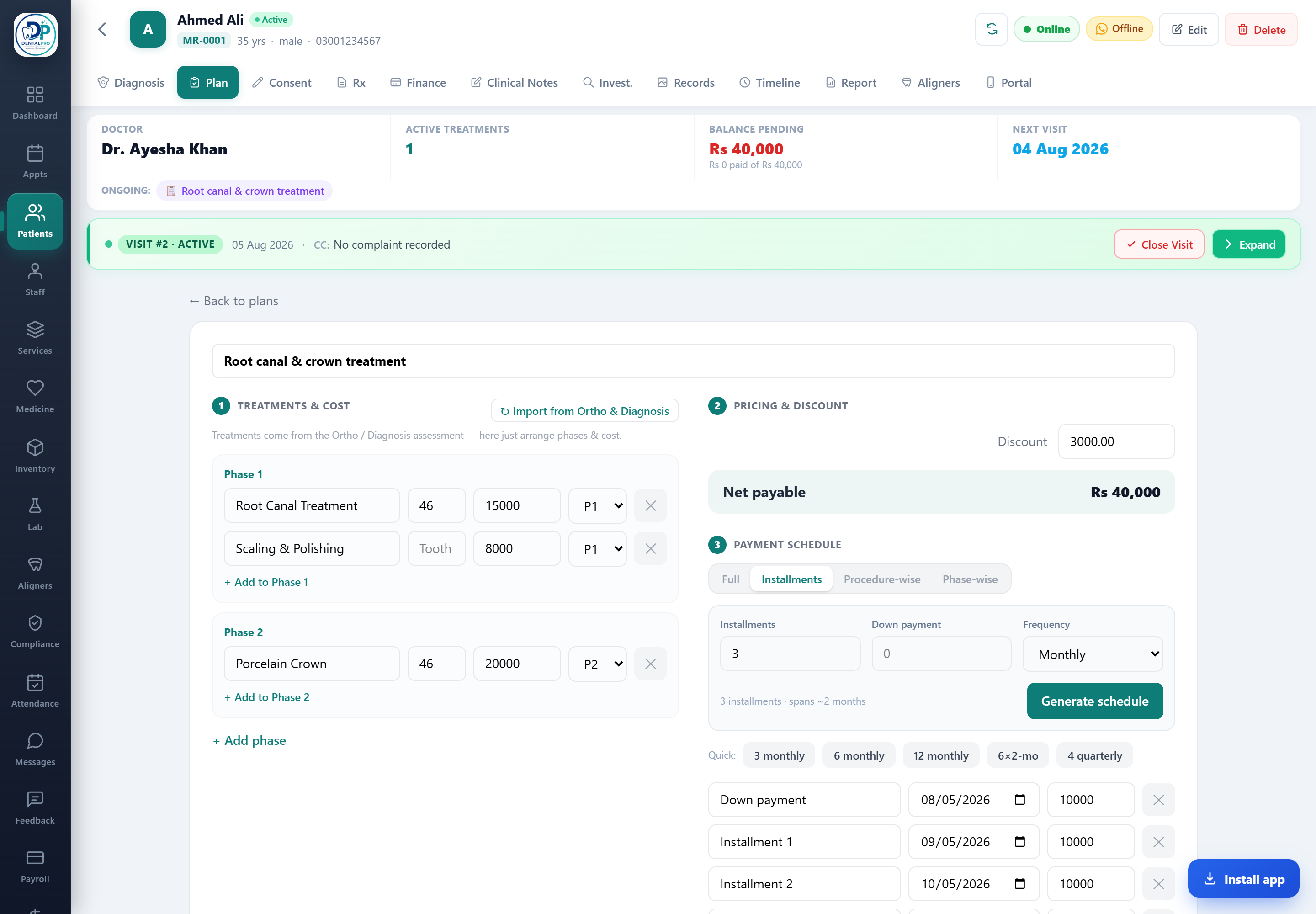
Open the Plan tab
From a patient’s chart, tap Plan. If you already charted treatments on the Diagnosis tab, they’re pulled in automatically as an estimate; otherwise start a new plan. The tab has three numbered sections: 1) Treatments & Cost, 2) Pricing & Discount, and 3) Payment Schedule.
Section 1 — arrange treatments into phases
Each treatment shows its tooth, cost and phase. Use Import from Ortho & Diagnosis to pull in what you charted, or + Add to Phase to add a line — start typing a treatment name and DentalPro suggests services from your catalogue (with their price), or type any name freely. Group work into phases (e.g. Phase 1: root canal + scaling now, Phase 2: crown later) with + Add phase.
Section 2 — set the discount
Enter a discount amount. DentalPro subtracts it from the total and shows the Net payable — in the example, Rs 43,000 minus Rs 3,000 = Rs 40,000. This net is what the payment schedule splits.
Section 3 — choose how they pay
Pick a payment mode: Full (pay it all at once), Installments (a schedule over time), Procedure-wise (pay per procedure as it’s done), or Phase-wise (pay per phase). For a payment plan, choose Installments.
Build the installment schedule
Set three things: the number of installments, an optional down payment taken today, and the frequency (weekly, monthly, and so on). Tap Generate schedule and DentalPro splits the net into equal installments on the right dates. Prefer a preset? Tap a Quick chip — 3 monthly, 6 monthly, 12 monthly, 6×2-months, or 4 quarterly.
Fine-tune each installment
The generated schedule appears as editable rows — each with a label, a due date and an amount. Change any date or amount by hand (for example, a larger down payment and smaller later installments). The amounts always total the net payable, so the plan can never quietly under- or over-collect.
Set the plan status & save
Move the plan from Estimate to Active (then later In Progress and Completed). Saving an active plan automatically creates an invoice and posts the amounts to the patient’s ledger — no separate billing step.
Collect installments over time
Each due installment shows up in Due Payments on the dashboard and in the patient’s Finance tab. When the patient pays one, open Finance → Collect payment, enter the amount and method, and print the receipt. The balance and the schedule update automatically.