
The patient record, end to end
The Patient module is the heart of DentalPro. Everything about a patient — their history, chart, plans, prescriptions, bills, images and app access — lives in one record. This guide walks the whole thing, from the register to a full visit.
The patient register
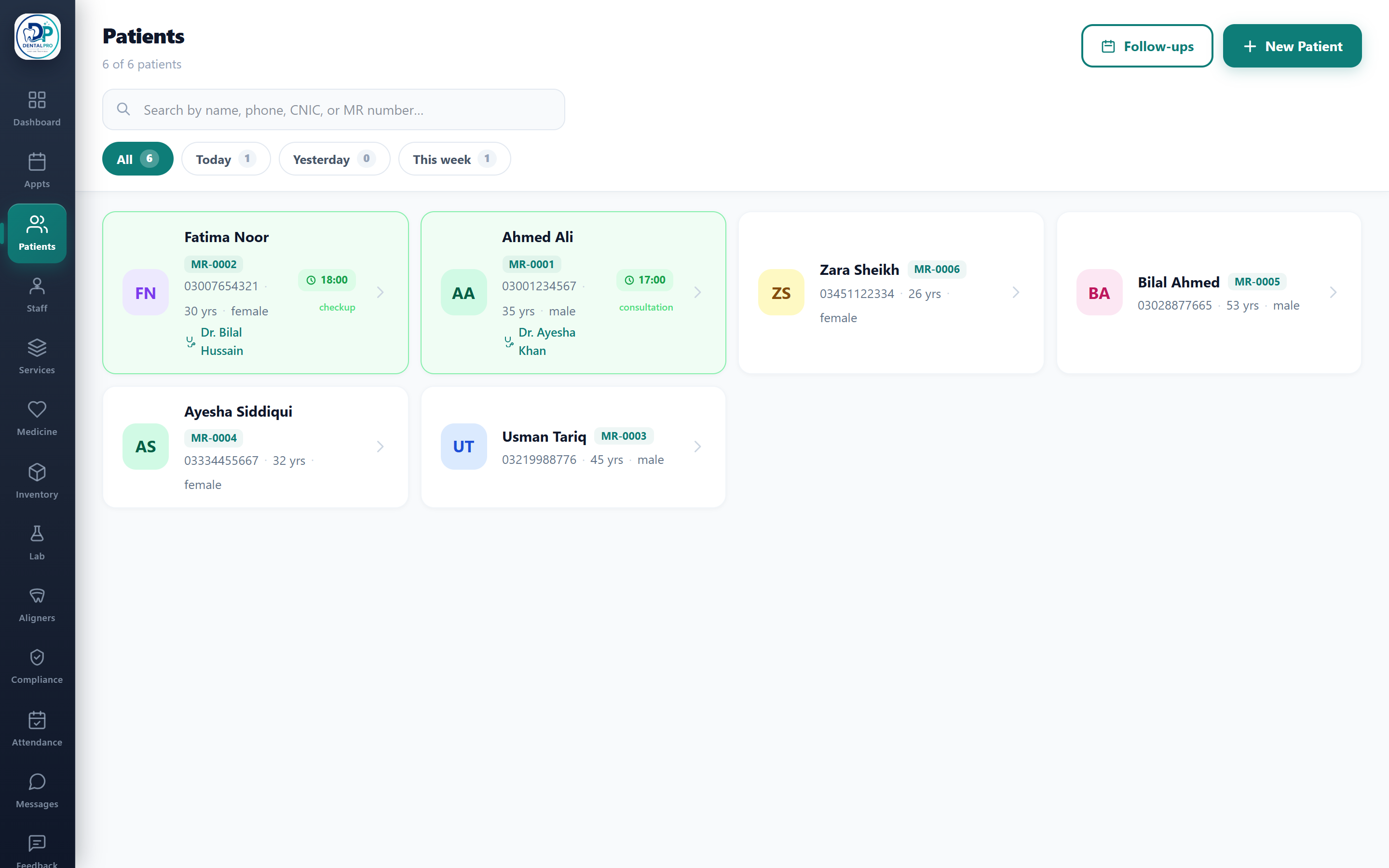
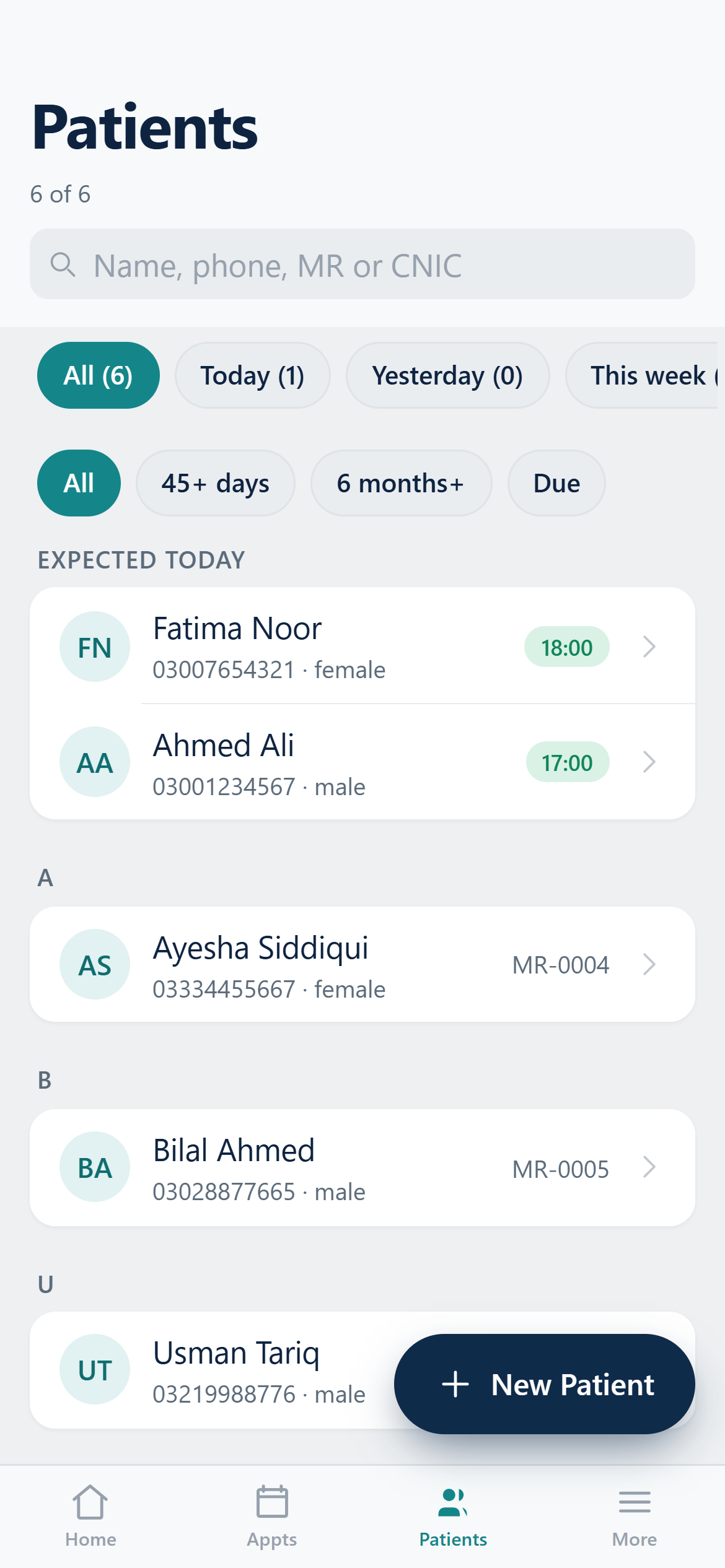
Open Patients to see your whole register. Search by name, phone, CNIC or MR number (dashes are ignored), and use the All / Today / Yesterday / This week chips to filter by last-visit date. Patients with an appointment today are highlighted and float to the top, and the Follow-ups button opens everyone due for a recall.
Registering a patient
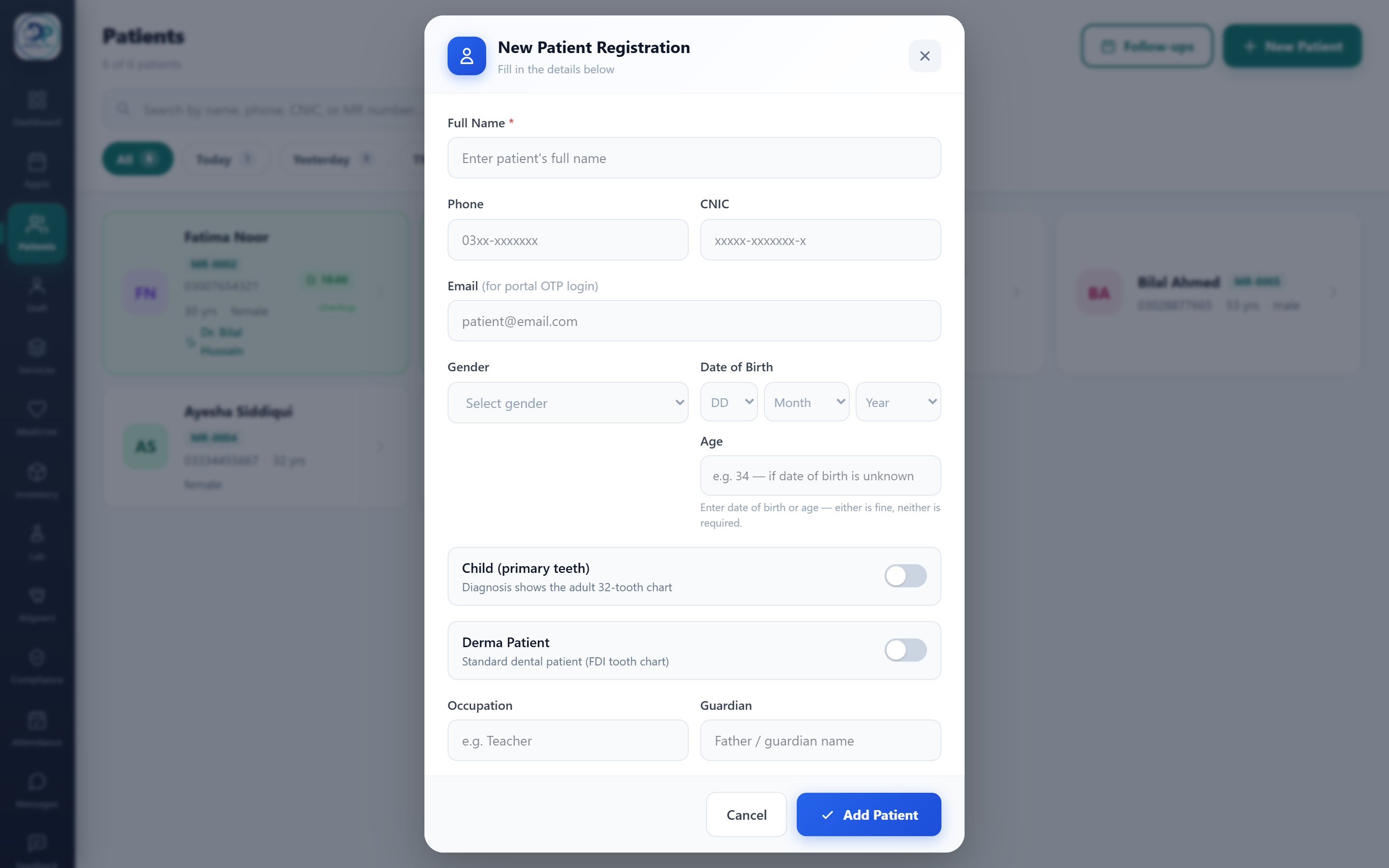
Tap New Patient. Only the full name is required; add phone, CNIC, gender and date of birth (or just an age) as you like. A phone number unlocks WhatsApp reminders and the patient app. Toggle Child for primary (milk) teeth, or Derma Patient to switch to the skin/aesthetics workspace.
The chart header
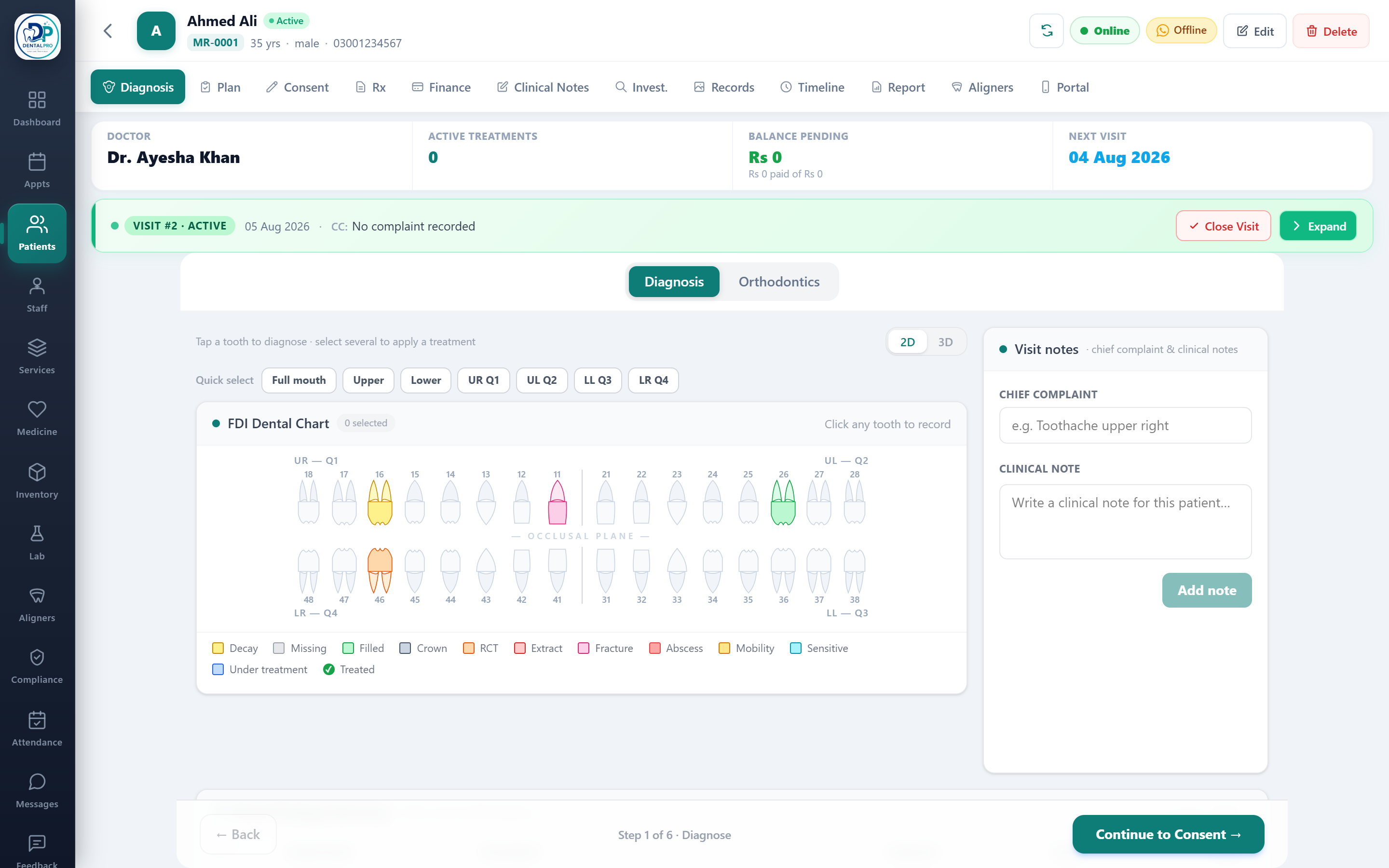
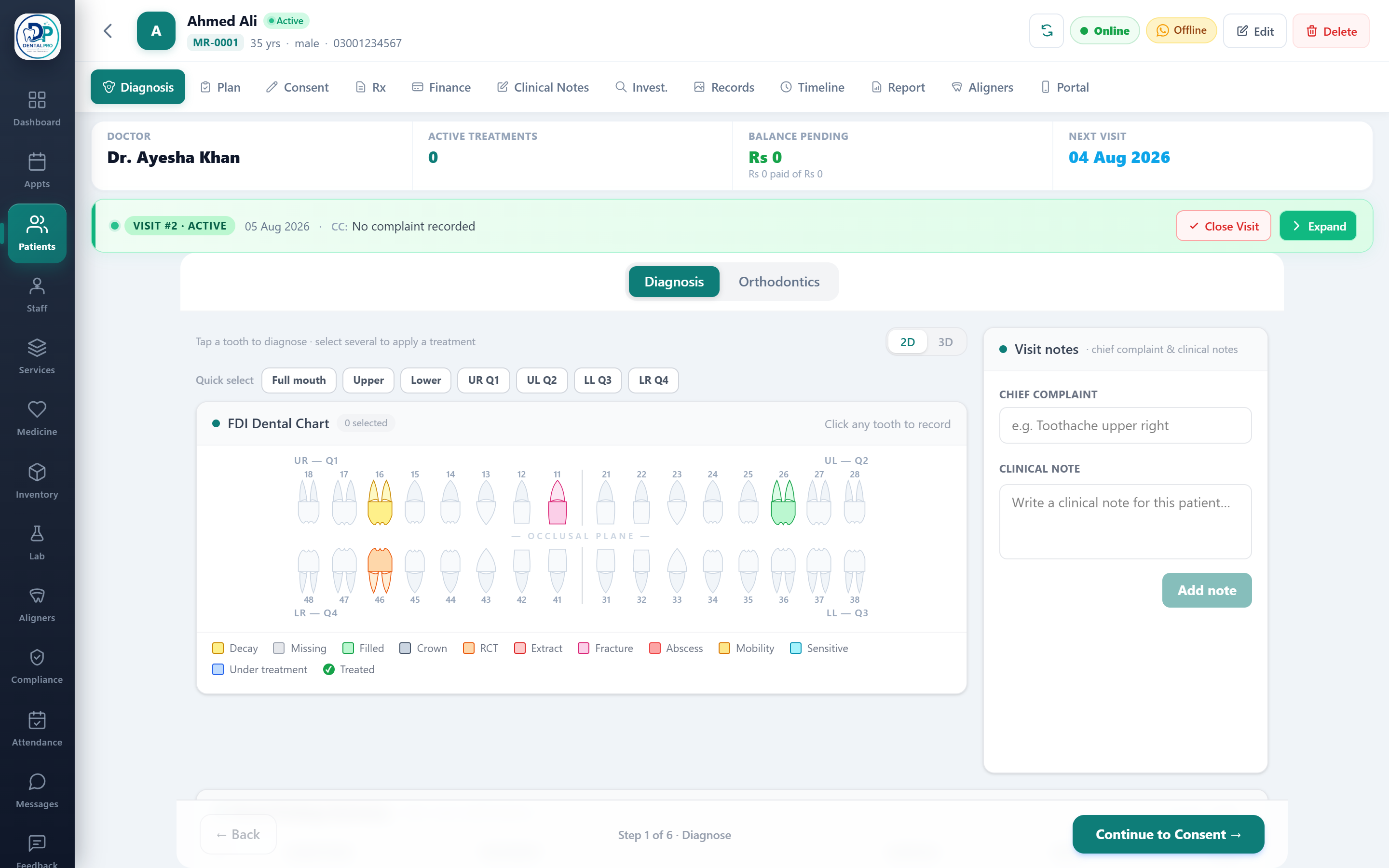
Opening a patient shows their chart. The header carries their MR number, age and gender, active treatments, pending balance and next visit — plus a Visit banner. For clinical roles a visit opens automatically, so every note attaches to the right encounter.
The chart tabs
Along the top are all the parts of the record: Diagnosis (the tooth chart), Plan (treatment plan), Consent, Rx (prescriptions), Finance (billing & ledger), Clinical Notes, Investigations, Records (images & 3D scans), Timeline, Report, Aligners and Portal.
Diagnose
On Diagnosis, tap teeth on the FDI chart to record conditions. Use Quick select (full mouth, arch or quadrant) to mark many teeth at once, then apply a treatment to the whole selection.
Plan & bill
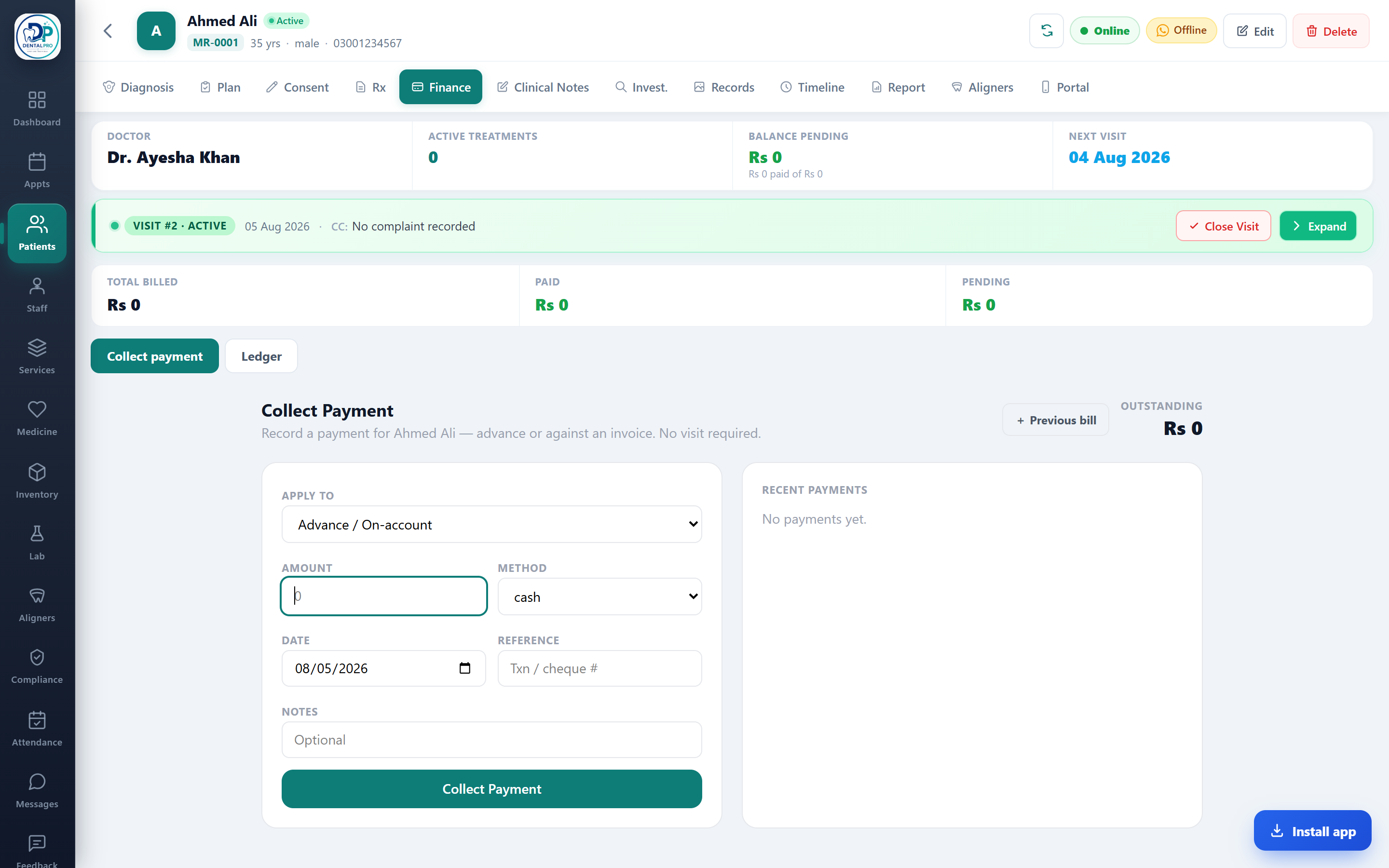
Accepted treatments become a costed Plan with discounts and installments, which posts to the patient Finance ledger. Collect a full or part payment and print a receipt — it all flows into Accounting.
The guided visit flow
Under the chart, the encounter flow moves you through Diagnose → Consent → Treatment plan → Prescription → Payment → Files in one pass, so a full visit is captured without hunting through menus.
Give the patient app access
On the Portal tab, enable the patient portal and send a secure sign-in link on WhatsApp or email. The patient can then see their records, book, pay, chat and track treatment from their phone.